
Tailoring Zoom to Mediation for the Moment
This post has been viewed 7,664 times.
Among the many ironies of the Coronavirus pandemic is that it isolates us when we need to come together. Dramatic change creates friction, yet traditional pathways to resolve those disputes were quickly frozen and are coming back at a trickle. Courts have cleared the way for video appearances and judges have pivoted remarkably quickly to technology designed to keep the wheels of justice turning. But they must prioritize cases due to bandwidth constraints. And like teachers, legislators, and so many others, they did not go into high context fields to become two-dimensional video feeds in a Brady Bunch-like gallery view on computer screens.
Mediation and ADR have existed since Biblical times and have transformed to meet historical inflection points. The 1976 Pound Conference is credited as the ADR big bang. Chief Justice Warren Burger invited Harvard law professor Frank Sander to deliver a paper addressing protracted litigation and court backlogs. Sander’s “multi-door courthouse” highlighted mediation and other “doors” intended to bring people together to develop, explore, and test ways to resolve their own disputes – often with trained facilitators. Federal Judge Griffin Bell, as President Carter’s Attorney General, championed establishment of multi-door courthouses in many jurisdictions. Texas, Florida, California, and other so-called sand states were early adopters and Justice Frank Evans penned the Texas ADR Procedures Act on a Capitol bench in 1987. The Future of ADR, ADR Handbook of the ADR Section of the State Bar of Texas (2018) with Justice Frank Evans and Colin Rule. www.donphilbin.com/wp-content/uploads/2018/05/ADR-Handbook_The-Future-of-ADR-05022018.pdf
Technology was already enhancing core principles when practitioners and scholars gathered to celebrate and extend that big bang with the Global Pound Conference in 2016-17, a rolling series of in-person and online meetings, surveys, and practice sessions throughout the world. I had long made phone calls to lawyers in advance to prepare and gain insight (usually after reading provided material), met with groups, and provided shuttle diplomacy. In those few cases that don’t settle on mediation dates, I have facilitated continued work and settlement of some very large and small cases with separate phone calls, messages, and email. Those tools remain in the toolbox and are often used concurrently with video complements.
Necessity drove innovation. When the pandemic abruptly discouraged air travel, I had to adapt over a weekend to keep a Monday mediation going with out-of-state lawyers and other participants. Before shelter-in-place orders, we could meet with some participants and tie in others by video and phone. It exceeded our (low) expectations. As more restrictions cascaded down, some mediations rescheduled but many had to continue in varying formats. While no one’s first choice, those too went much better than anticipated. During this crash adaptation cycle, IAM, NADN, CPR, AAM, and other groups were leading the way with working groups applying existing tools to the mediation moment.
The online platform for many of these meetings and many mediations has been Zoom, which itself has ADR ties. When Zoom’s founders left WebEx, they ended up down the hall in Silicon Valley from Colin Rule, who had systematized ways of resolving mass disputes for Ebay / PayPal. Colin continues that fine work (I’ve been fortunate to teach and write with him for years) and he mentioned some mediation specific features that Zoom has facilitated. The principal advantage for mediation is the easy management of Breakout Rooms.
While none of us would have wished for a pandemic to accelerate adoption of tech solutions, various media mixes have been studied for decades. We know from communication studies of the Kennedy – Nixon debates that perceptions vary depending on whether we read the transcript, hear the radio feed, or watch the video. We know from negotiation class exercises across universities that participants who have seen or talked with one another early have higher settlement rates by asynchronous (text, email) communications later in the round.
Video cannot replace in-person contact, but it helps mirror gestures, gaze, and instantaneous responses while participants focus on the same thing at the same time. Those physical gestures help build trust and rapport. Once trust and rapport are built, settlement rates increase.
What follows is a practical attempt to summarize what I’ve gathered from thought leaders and Zoom mediations. Since Zoom is easy for users (single click and no required download), this is a behind the curtain look at Zoom control features mediators can use to protect the participants and process.
Zoom Basics
Zoom is one of several video platforms conducive to mediation. It is being widely used by courts, educators, companies, and social gatherings. Usage skyrocketed during the early days of the pandemic and the platform has shown stress fractures. Zoom has responded to the harsh criticism with security fixes. Tweaks to its default settings further increase mediation protection. See, Rick Weiler, Is Zoom Good Enough for Mediation? mediationblog.kluwerarbitration.com/2020/04/06/is-zoom-good-enough-for-mediation/
Users Click Meeting ID and Enter Password
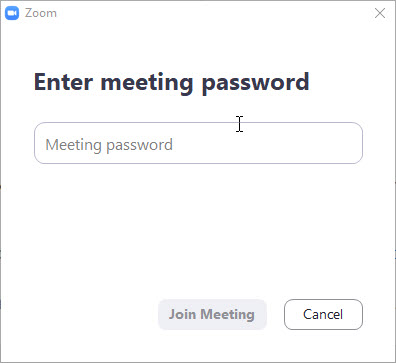
Users simply click a unique meeting ID with embedded password sent by the organizer (mediator) or launch zoom.us/. Participants do not need to download the app but it does increase functionality and security. Testing the app in advance streamlines the process and there are a variety of tutorials on the Zoom site. www.youtube.com/embed/hIkCmbvAHQQ?rel=0&autoplay=1&cc_load_policy=1 The latest security revisions require users to enter passwords to enter the meeting to prevent Zoombombing. If the unique meeting ID does not have the password embedded or you have trouble logging in, you will be required to enter the Meeting ID and password manually. The meeting ID and password can be found in the invitation.
Mediators Need Paid Subscription
Mediators (hosts) will need one of the paid subscriptions both for functionality and so the 40-minute limit on free subscriptions does not time participants out during your session. I use the Pro plan that accommodates up to 100 participants for 24-hours. If the mediator has a paid account, participants are not subject to the short free time limit.
Confidentiality – Arranging the Furniture
Most video conferencing platforms were designed for presentations and classroom environments. There have been instances where unwanted users have shared inappropriate screens in virtual classrooms. Zoombombing can be avoided in several ways.
Mediators spend a lot of time thinking about specific cases and the real people in them. We worry about who will arrive when and where they will be located. Whether we will show them directly to Breakout Rooms to collect thoughts and participants or send everyone directly into a joint session. Where different combinations of parties and lawyers might be able to breakout, and if anyone needs to be on a “different floor” so to speak. Mediators spend time arranging the furniture. Zoom facilitates that dynamic, but it requires forethought.
Participants are held in the Waiting Room under my configuration until authenticated. Zoom recently changed default settings to include passwords and waiting room. Once greeted in the Waiting Room, participants are “walked” to different Breakout Rooms. It there will be a joint session, I’ll do that by separate Breakout Room for additional security control.
What follows are a series of Zoom settings screenshots with narrative to help implement these assumptions:
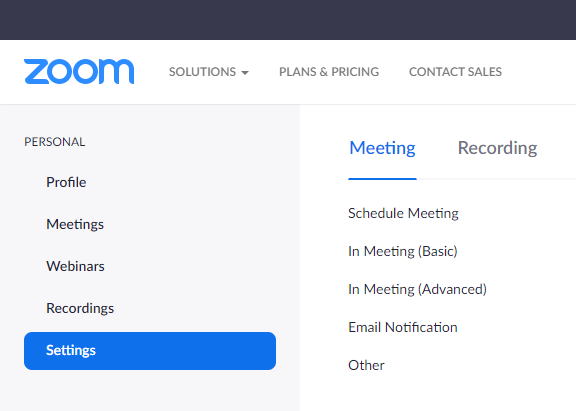
Go to Zoom Settings in a Paid Subscription
Create Unique Personal Meeting ID
Creating unique meeting IDs for each mediation invitation changes the invite by mediation. If you repeatedly use the same meeting ID (like your default Personal Meeting ID), others with that ID for a later mediation might test the software while you are in another mediation. It is easy to automatically generate unique IDs for meetings.

Select Data Center Regions
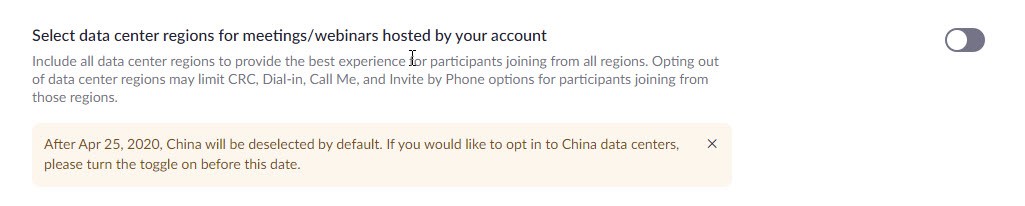
In response to criticism, Zoom deselected data centers in China by default and allows paid users to select data center regions used for their mediations (meetings) as of April 18, 2020. Here is a Zoom blog post and a screenshot of the toggle election. blog.zoom.us/wordpress/2020/04/13/coming-april-18-control-your-zoom-data-routing/
Turn Off Recording Features
In the classroom or corporate meeting model, recording might be a useful feature. I disable those features for all mediation participants, including myself. My Mediation Agreement also asks participants to agree that they will not record a mediation session – physical or online. Zoom notifies participants when the app is recording the session with a red dot indicator in the top left of the screen. I’ve also disabled the in app Chat feature since I use cell phone chat for a variety of reasons. Attention Tracking is also disabled (Zoom later removed).

Require Encryption With Easy Login and Password
My default settings require encryption and make it easier for participants to join with one-click by embedding the password in the unique meeting link. Participants will still have to be admitted to the mediation from the Waiting Room. Zoom recently changed the default settings to require user passwords.


Waiting Room Controls Participation
Just as with a physical waiting room, turning on the virtual Waiting Room collects participants at entry to increase control not only over who is admitted, but allows the greeting process to build some rapport while addressing any technical issues.

Use Breakout Rooms – Even if You Plan to Stay in Joint Session
Breakout Rooms are the reason Zoom seems to best approximate mediation formats, whether joint session or caucus centric. Enable them in your subscription even if you prefer to stay in a single room or do not use them most of the time. There is no downside to having extra apace allocated that goes unused in a particular mediation.

Zoom has several online resources for Breakout Rooms:
- Managing Breakout Rooms support.zoom.us/hc/en-us/articles/206476313-Managing-Video-Breakout-Rooms
- Participating in Breakout Rooms support.zoom.us/hc/en-us/articles/115005769646-Participating-in-Breakout-Rooms
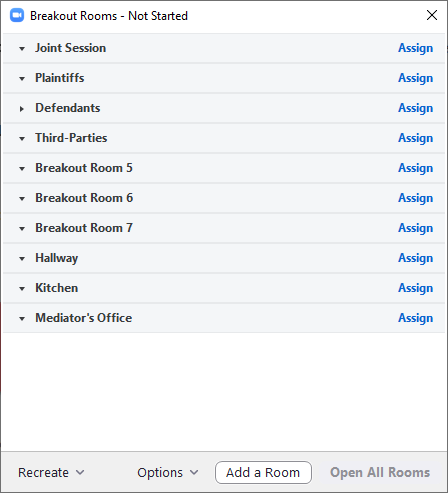
Since Zoom allows up to 50 breakout rooms, I set up at least one for each party group plus five. A Joint Session is a breakout even though there is a default since Zoom allows participants to wander into the default room. A breakout room with the same purpose provides controlled access with the room assignment feature. Since many productive conversations occur in the hall, kitchen, or office, I set those rooms up too. The names themselves show up to the participants and provide a little needed levity to break the ice of this online adaptation.
Scheduling Establishes the Unique Mediation
Scheduling the mediation in Zoom is not much different than sending a meeting invite from Outlook or Google Apps (paid). There are also plug-ins that integrate the scheduling apps. With unique Meeting IDs activated, each will be different. As a default, I turn off video and mute participants on entry. Of course, that changes when they are admitted to the mediation and assigned to a Breakout Room. The initial privacy settings guard against participants wondering how long another participant has been listening to them. With that setting, though, I must remember to unmute my microphone when entering Breakout Rooms.
One feature on my Zoom wish list is an electronic knock on Breakout Room doors before I join them. The app does allow chat, but I’ve disabled it in favor of concurrent phone texting. To alleviate any concern that I might overhear their discussion, I text lawyer phones that I am “on the way” or “knock knock” before I join their Breakout. Texting also provides a backup line and it is easy to manage different text strings for the different rooms. That backline is very helpful with more than three rooms.

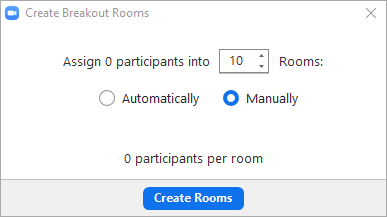
Within the scheduled mediation (meeting) in the Zoom app, the mediator can Create Breakout Rooms. I’ll create more than I need and Manually assign each participant to a Breakout Room from the Waiting Room.
So the Breakout Rooms might look something like this – varied by case of course.
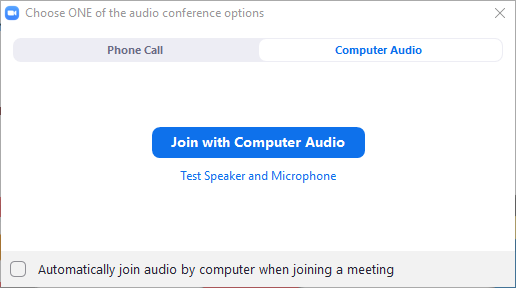
Once participants (attorneys, parties, etc.) start to show up in the Waiting Room – and it’s usually in clusters like real life after they meet in advance – they will be prompted to Join with Computer Audio or by Phone Call.
Upon joining, the mediator will start to see those Participants populate a box with a microphone and video camera.
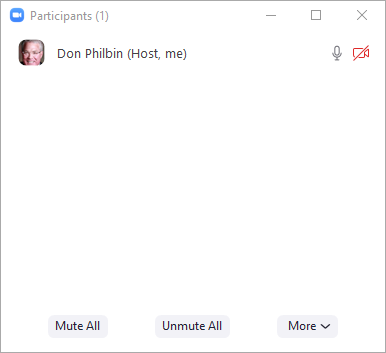
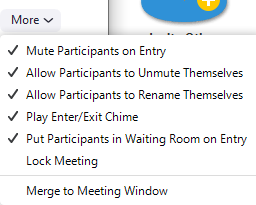
Participants are Muted when they appear in the Waiting Room. When each participant is Admitted to the mediation, I Unmute them with the microphone icon and give them the option to activate their video feed with the camera icon. Once the participant has been Admited, Unmuted, and Video activated, and we have worked through any technical issues (surprisingly few), that participant shows up as an option in the Breakout Rooms box as an assignment option. The mediator presses Assign to move one of the available participants to a Breakout Room.
Magic Toolbar Appears for Navigation

A toolbar appears in the Zoom app when the mediation (meeting) begins. From this toolbar, the mediator can manage the mediation from an armchair. These icons are always available to open the control boxes discussed above. The Participants box opens the Waiting Room and the Breakout Room box opens the box used to assign accepted Participants to Breakout Rooms or for the mediator to Join or Leave a room. Screen Share and Chat do just that subject to my default settings. Polls are available to the mediator but I’ve not used them yet to poll the whole group.
Then the Mediation Begins
From there, it is back to mediation basics. The mediator can join any of the Breakout Rooms. With the press of the arrow to the left of each Breakout Room name, Zoom displays the participants and indicates that they are connected with a green dot. The mediator can talk with parties in their Breakout Rooms, assign everyone or some combination of participants to the Joint Session, walk down the Hallway with some or all of the lawyers, talk about drafts in the Kitchen or Mediator’s Office, and everything else that evolves in mediation.
Sharing Screens – and Draft Mediated Settlement Agreements
Zoom also allows screensharing, annotation to a shared screen, whiteboards, and other meeting rich features. Depending on the circumstances, they may be useful for mediation. But having seen some things in real-life mediations and heard about unwanted screenshares in classroom settings, I’ve tightened some of those settings by default. They can be loosened at the appropriate time in mediation.
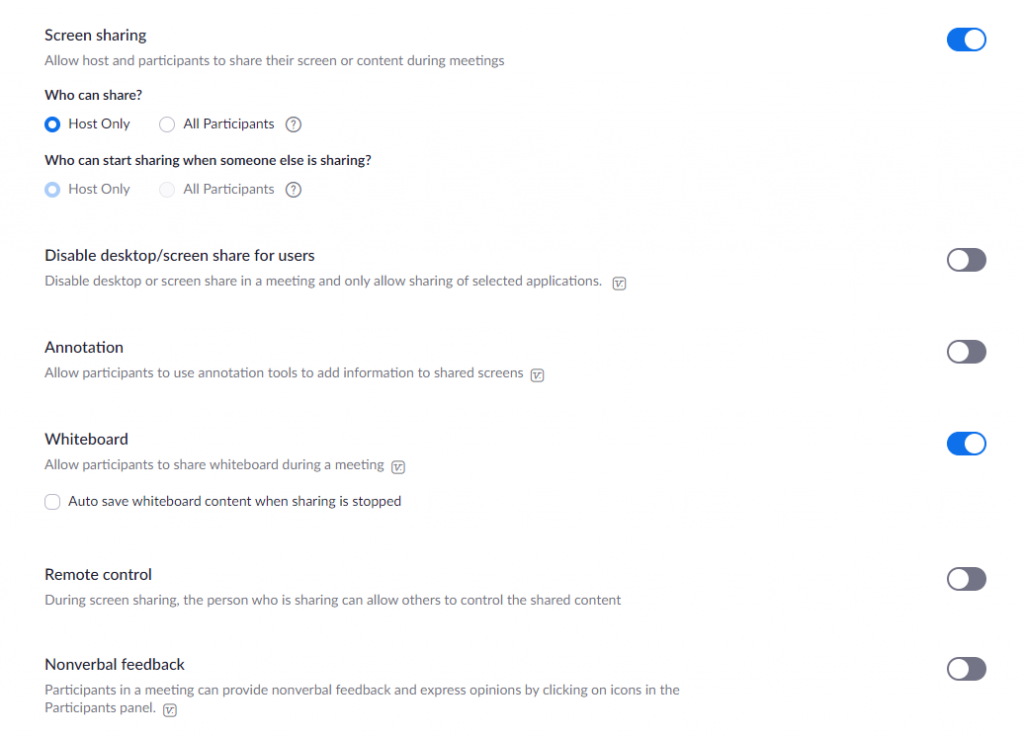
It can obviously be helpful to share PowerPoint presentations, documents, video clips, and draft settlement documents. All that can be activated by the mediator (host) inside the meeting. Parties can then sign final documents with other applications like Adobe Sign or DocuSign, or by otherwise indicating their agreement by legally enforceable means.
These Are Great Workarounds – Hope Video Becomes Just Another Tool Soon
COVID-19 may be the big bang for online dispute resolution, but I hope it quickly becomes another tool in an expanding toolbox rather than a continued necessity. Video does provide more context and non-verbal communication than phone, text, or email. Studies have shown that people who first meet in person or on video have higher settlement rates than those who start building rapport with text or email alone. I’ve used pre-mediation phone calls for years to find out what cases are really about. We have tied people in by phone during mediations for a variety of reasons. Follow-up has often been successful by text or email, usually after developing a higher-context relationship. Video platforms will likely endure, but soon I hope they take their place as a tool rather than a necessity.
Read original articleTags: